
Manage content
Use the CMS Content dashboard to find, review, and manage assets. Assets are grouped by content type and displayed as cards, making it easy to scan status and take action.
From the Content tab, you can review an asset’s current state, including availability status, labels, and scheduling indicators, and perform actions using the available options. You can manage assets individually or select multiple assets to apply bulk actions.
Content tab layout
Asset filters

Use filters to quickly locate the assets you want to manage. The following filters are available:
- Text search
- Status: Active or Draft. Active content is available to viewers. Draft content isn't. In the Overview panel, this is the Active setting, on or off. You can change status by hand, or automatically. See Automatic event-based activation.
- Labels: Labels assigned to an asset
- Competitions
- Geo targeting
- Created by
- Creation type: The asset context, such as pre-game, in-game, or post-game
Asset cards
Each asset is displayed as a card containing key information and management controls.
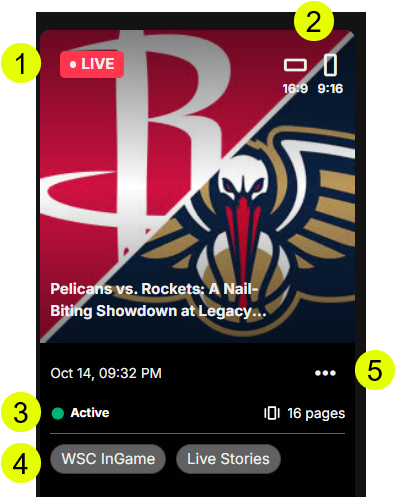
| Key | Indicator | Remarks |
|---|---|---|
| 1 | Live chip |
|
| 2 | Aspect ratio |
|
| 3 | Availability status | Shows Active (available to viewers) or Draft (not available to viewers). Assets can be delivered if the status is Active and the schedule and labels associated with the asset match the current time and requested labels. You can change status by hand, or automatically. See Automatic event-based activation. |
| 4 | Labels | Labels associated with the asset. See Labels and scheduling. |
| 5 | Options (...) | Available options depend on the asset type:
|
Asset management options
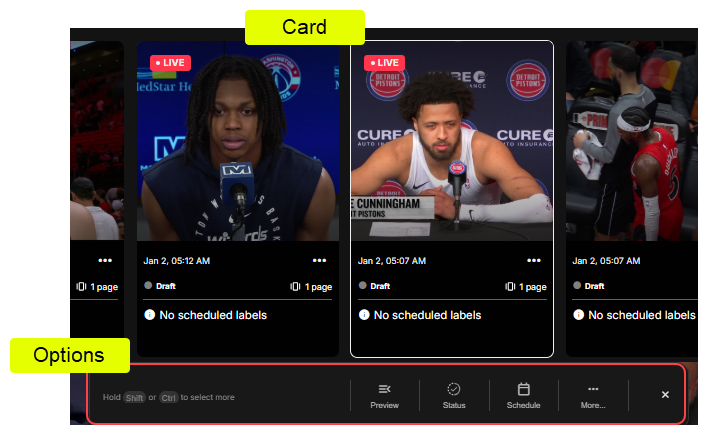
Selecting assets to manage
The options available when selecting an asset differ between single-asset selection and multiple-asset selection.
- Single asset select: Select an asset to view the options.
- Multiple asset select (bulk):
- Hold the
ShiftorCtrlkey and select one or more assets - Bulk changes apply to all selected assets
- Hold the
Options available per selection method
| Option | Single select | Multiple select (bulk) | Description |
|---|---|---|---|
| Overview | Y | N | In the Overview panel, view the asset and set any of the following:
|
| Status | Y | Y | Select Status, then Active (available to viewers) or Draft (not available to viewers). For a single asset, you can also turn the Active setting on or off in the Overview panel. You can also change status automatically. See Automatic event-based activation. |
| Schedule | Y | Y |
|
| Live chip | N | Y |
|
| Geo targeting | Via ... more | Y | See Geo-targeting |
| Delete | Via ... more | Y | Delete asset. |
Additional options via ... more
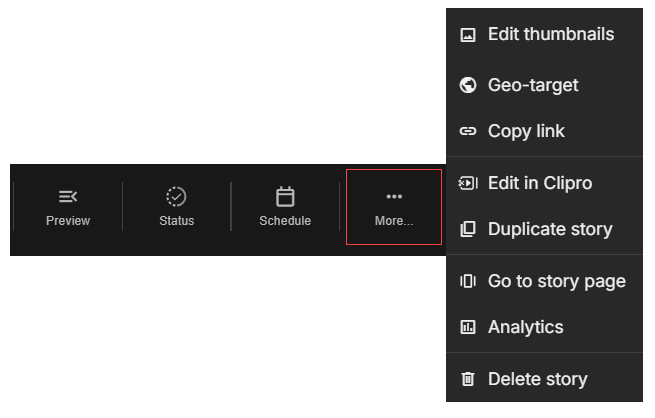
Asset-level options depend on the content type, outlined in the table that follows.
| Option | Stories | Moments | Videos |
|---|---|---|---|
| Edit thumbnails | Y | Y | Y |
| Geo-target | Y | Y | Y |
| Add translations | Y | N | N |
| Copy link | Y | Y | Y |
| Delete asset | Y | Y | Y |
| Duplicate asset | Y | Y | Y |
| Add as Moments | Y | N | N |
| Analytics | Y | N | N |
| Go to story page | Y | N | N |
| Edit in Clipro | Y | N | N |
| Add call to action | N | Y | N |
Updated 21 days ago