
Duplicate asset
Duplicate assets to publish the same content across different contexts, such as geo locations, versions with different titles or visual treatments for specific app configurations, and to edit copies without impacting the original content.
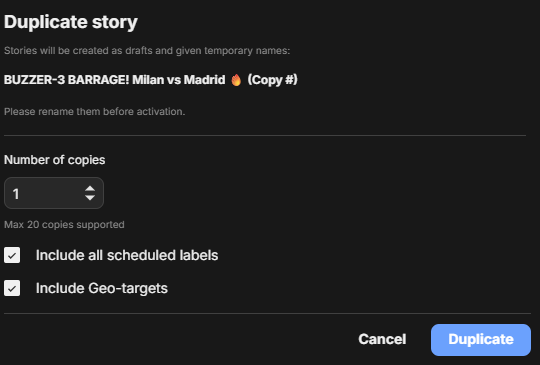
Duplicate asset principles
When you duplicate an asset, the duplicated version has the following initial characteristics:
- The title includes the suffix
Copy n, where n is the copy number. Up to 20 duplicates can be created. - Active is off, so the copy isn't available to viewers. Its availability status shows as Draft.
- Scheduled labels are included by default.
- Geo-targeting settings are included by default.
- The content matches the original and can be edited in Clipro.
- Duplicate is available for Stories, Moments, and Videos.
Limitations
- Don’t duplicate content during live events, as updates to the original won’t be reflected in duplicated versions.
Duplicate workflow
To duplicate an asset:
- In CMS, select an asset.
- Click ... (options) > Duplicate.
The duplicate asset settings display. - If needed:
- Change the number of copies.
- Unselect Include all scheduled labels.
- Unselect Include geo-target settings.
- Click Duplicate.
Updated 24 days ago
Did this page help you?