
Text localization
Content localization allows your app to display text content in the viewer's preferred language and locale (referred to here as preferred language). This lets content managers provide translated titles, descriptions, subtitles, and CTA text while the SDK automatically displays the appropriate language based on the viewers language setting. Meaning, the device language setting.
SDK availability
Text localization (SDK preferred language / setPreferredLanguage) is available starting with: Android 1.16.0 | iOS 1.16.0 | Web 0.34.0 | React Native 1.6.1 | Flutter 1.19.0.
What can be localized
The content metadata fields that can be localized are listed in the table that follows. Localization is supported only for content created in Arena.
| Metadata field | Stories | Moments | Videos |
|---|---|---|---|
| Title | Y | Y | Y |
| Description | N | Y | Y |
| Subtitle | N | Y | N |
| CTA text | Y | Y | Y |
Considerations for CTA text
For Stories with multiple CTA buttons:
- Localization must be set via the Story Page.
- Each CTA button can be localized individually by setting the translation per button.
Default language and fallback behavior
Content managers can set text in the context of a default language in the CMS. This default language serves as the fallback when the viewer's device language isn't available for a given content item.
Two related options are managed by WSC Sports for your app (not in the SDK). Contact WSC Sports to change them:
- Default language for text items: the fallback language for titles, descriptions, subtitles, and CTA text when a localized version is missing or the viewer's preferred language can't be matched. The system assumes English unless WSC Sports sets a different default.
- Fallback when translation is missing: when on (default), content displays in the default language if no translation exists for the viewer's preferred language. When off, that content is hidden instead.
Fallback language behavior:
- By default, if content isn't available in the viewer's device language, the content displays using the default language.
- The default language and the fallback on/off option are the WSC Sports-managed settings described above.
- Your app still chooses SDK language selection (
setPreferredLanguage/ preferred language). See Developer implementation.
Ownership
| Who | Role |
|---|---|
| WSC Sports | Sets the app default language and whether missing-translation fallback is on or off. |
| App owner / developer | Passes the viewer's preferred language to the SDK and related app language behavior. |
| Content manager | Provides translations in Arena / CMS. Missing translations follow the fallback rules above. |
Legacy content handling
Localization applies only to content created or republished after the Localization is available in your Experiences.
For content created before the localization feature was enabled in your app by WSC Sports, the localization fields are initially blank. This includes the default language type (name). To ensure backward compatibility, the following principles apply to legacy content:
Legacy content text display principles:
- If the fallback is off, the content won't be available. This behavior is identical to that of non-legacy content.
- If the fallback option is on and the default language is blank, the content displays with the original text. No consideration is given to the viewer's language settings.
How localization works
CMS settings
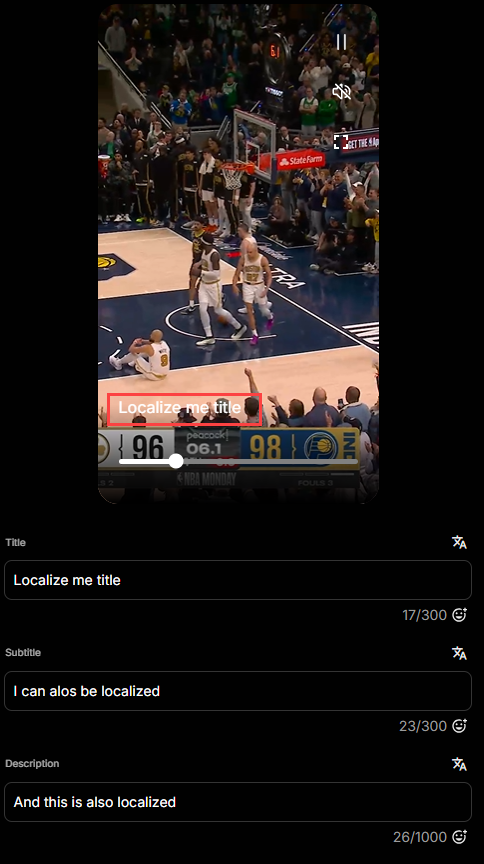
In the CMS, content managers can set localized values for titles, descriptions, subtitles, and CTA buttons at the content item level. They can set localized versions for one or more languages. Additionally, content managers set a default language in the CMS. If the viewer's device language isn't available for a content item, the default language is used as a fallback and is displayed.
Localization is managed in the CMS via the Overview panel and the Translations tab, where you can add or edit localized versions of supported fields. During content creation, you can select supported languages to automatically generate translations; generated translations appear in the Translations tab and can be reviewed or overridden at any time. A title is required for a language to be active.
For the steps, see Translate content.
Auto-translate in CMS
Content managers can generate GenAI translations from the Translations tab, per content item, without republishing the content. Auto-translate can fill only the missing translations, or translate every field again and overwrite existing translations. Content managers can also translate a single field, and add optional instructions to steer tone and style.
- Source: translations are generated from the content's default language values. If no default language is set, English is used.
- Quality: translation quality varies by language.
- Precedence: translations saved in the CMS always take precedence over translations generated at publish time, whether they were entered manually or generated by auto-translate.
For the steps, see Auto-translate.
Language and locale support
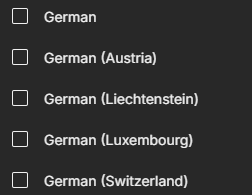
- Translations can be set at the language level or at the language with locale settings. For example, set the translation as being in German or German with the Swiss locale.
- In the SDK, you can set the viewer language preference at either the language level or at the language with locale. For example, let's assume that you translate to German. If you want viewers whose device language is German (Switzerland) (
de_CH) to see the German content, then the developer must set the preferred language to German and disregard the locale.
SDK implementation
The app must pass the viewer's locale to the SDK. Using locale, the SDK determines what is displayed to the viewer.
Developer implementation
To change content language for viewers:
- CMS: Add or edit translations for supported fields on each content item (see Translate content).
- SDK: Pass the viewer's language to the Experiences SDK so content requests include the preferred language.
Key points:
- The app must pass the locale to the SDK (typically from device or app language settings).
- Developers can override device locale by setting a preferred language explicitly in the SDK.
- The SDK handles language fallback automatically based on content availability and the WSC Sports-managed default language and fallback settings described in Default language and fallback behavior.
- Call
setPreferredLanguageagain during the session if the viewer changes app language settings.
Platform APIs:
| Platform | API |
|---|---|
| iOS | setPreferredLanguage |
| Android | setPreferredLanguage |
| Web | options.preferredLanguage on initialize, or setPreferredLanguage at runtime |
Impact on SDK behavior
When localization is enabled:
- Automatic language detection: The SDK uses the locale value reported by the app to request localized content.
- Content request: When fetching Stories, Moments, or Videos, the SDK includes the preferred language in the request.
- Fallback handling: If content is not available in the requested language, the SDK automatically falls back to the default language. Unless this option is turned off at your request by WSC Sports.
- Field-level localization: The SDK displays localized versions of titles, descriptions, subtitles, and CTA text when available.
For timed caption tracks (sidecar files), see Closed captions.
- Runtime updates: Language preferences can be changed at runtime, and the SDK will request updated content accordingly.
What is not localized
The following are not localized through CMS translations or setPreferredLanguage:
- Story player last-update label (relative time shown next to a Story in the player). Use
BlazeStoryPlayerLastUpdateTextStyleon iOS, Android, and React Native for appearance only (font, color, text case, visibility). See BlazeStoryPlayerLastUpdateTextStyle (iOS), Android, and React Native. - Closed captions: timed sidecar tracks and player CC controls. See Closed captions.
Don't use BlazeStoryPlayerLastUpdateTextStyle or other player style types to change content language. For localized titles, descriptions, subtitles, and CTA text, use the CMS Translations tab and Developer implementation.
Related documentation
Updated 21 days ago