
GAM banner format
Set up Google Ad Manager (GAM) so the Experiences SDK can serve a 320×50 display banner from GAM, without a WSC Sports creative template. On Web, a Moment can show this same 320×50 banner under the seek bar. The creative size does not change.
To set up display banner ads:
-
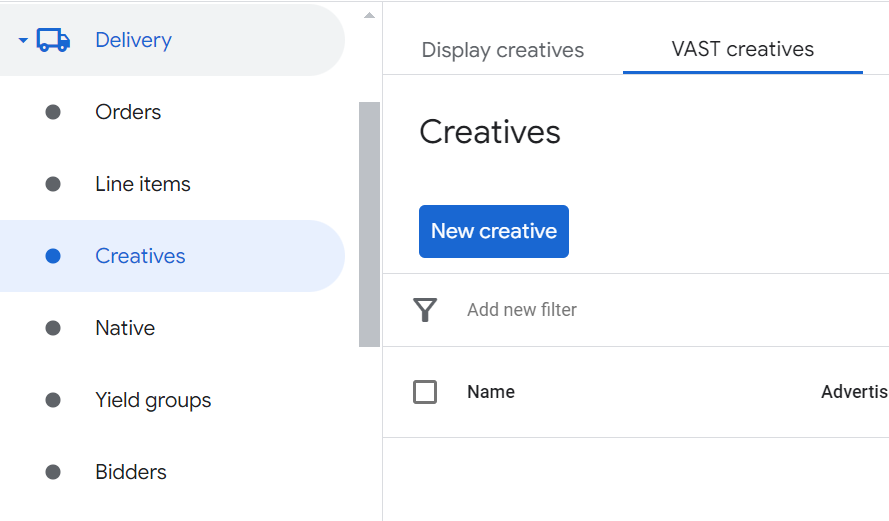
Go to https://admanager.google.com, log in, and open Delivery > Creatives.
-
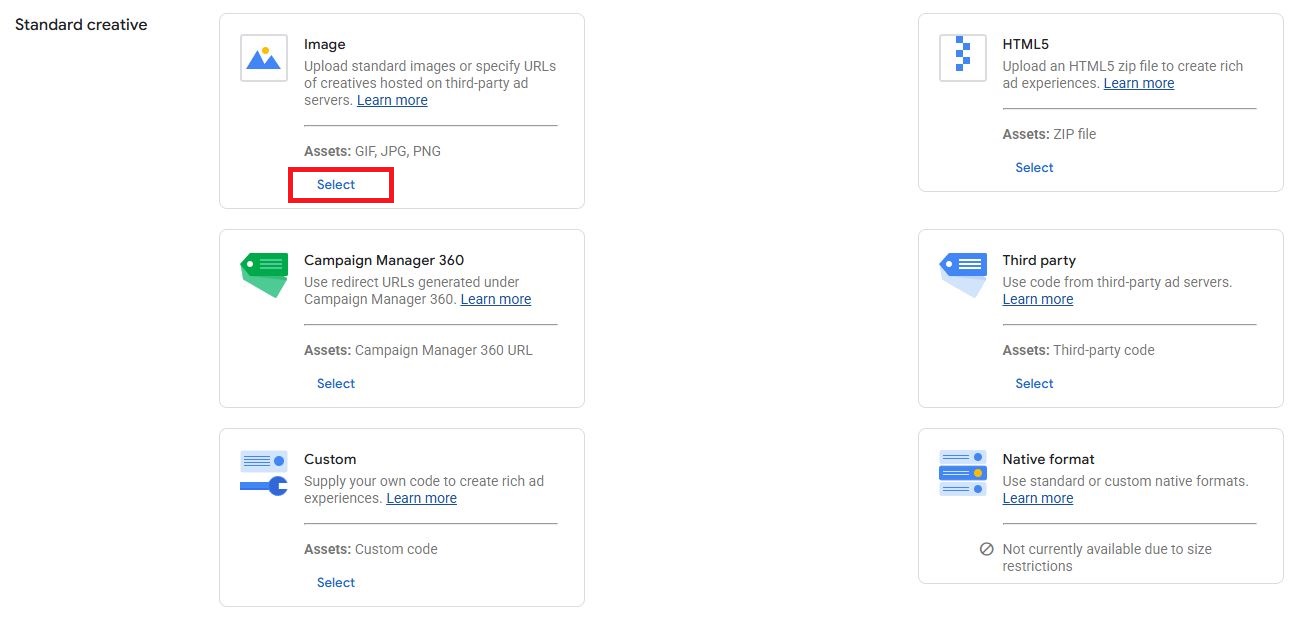
Select New creative and choose Image as the format.
-
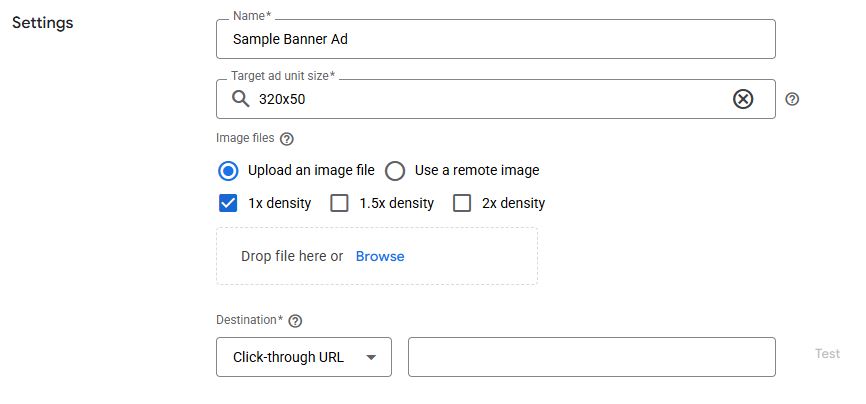
Set the creative size to 320×50 pixels. Upload a static image (JPEG, PNG, or non-animated GIF) and complete the required fields (name, destination URL, and landing page).
-
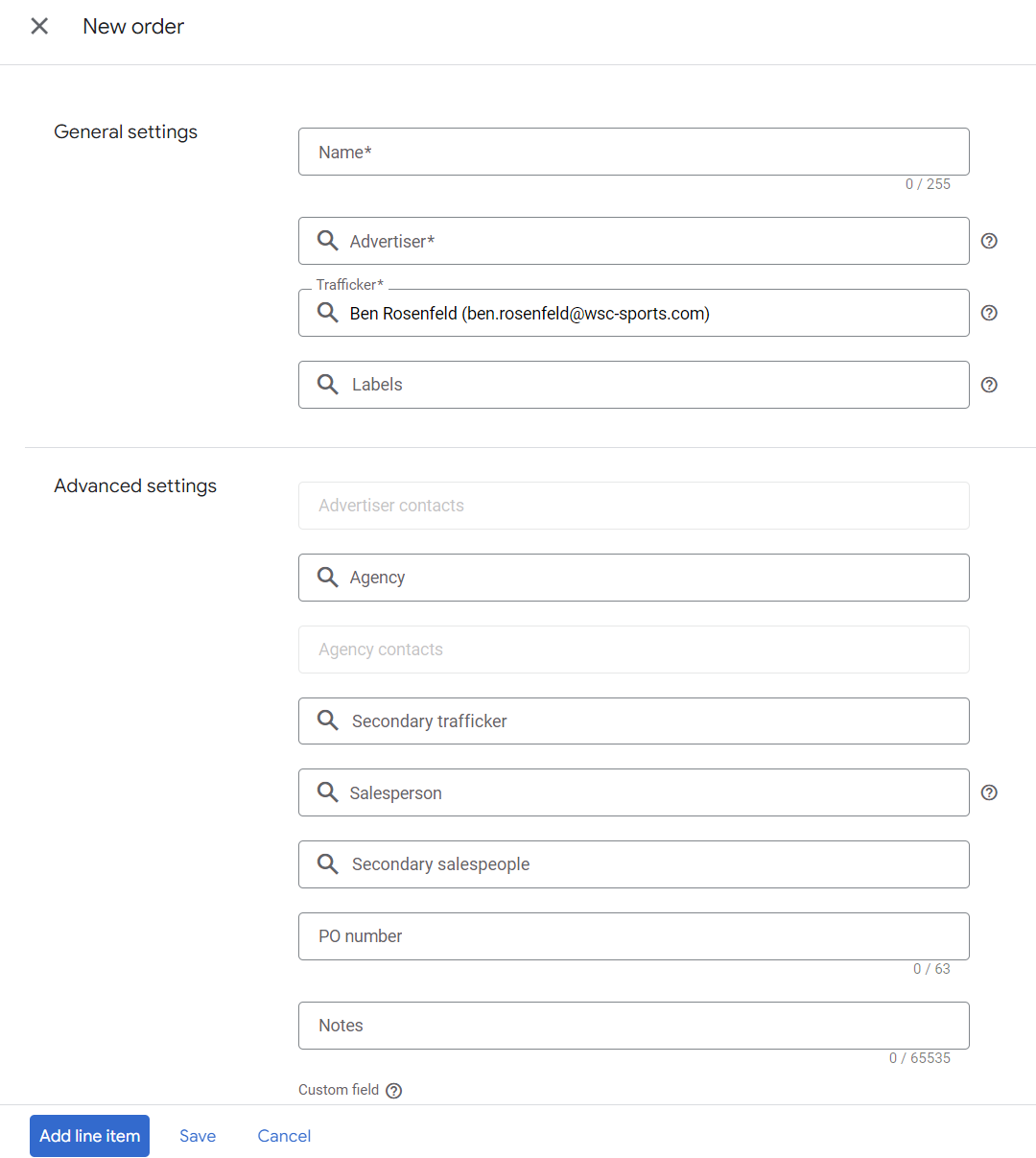
Open Delivery > Orders, create a new order, and add a line item to that order.
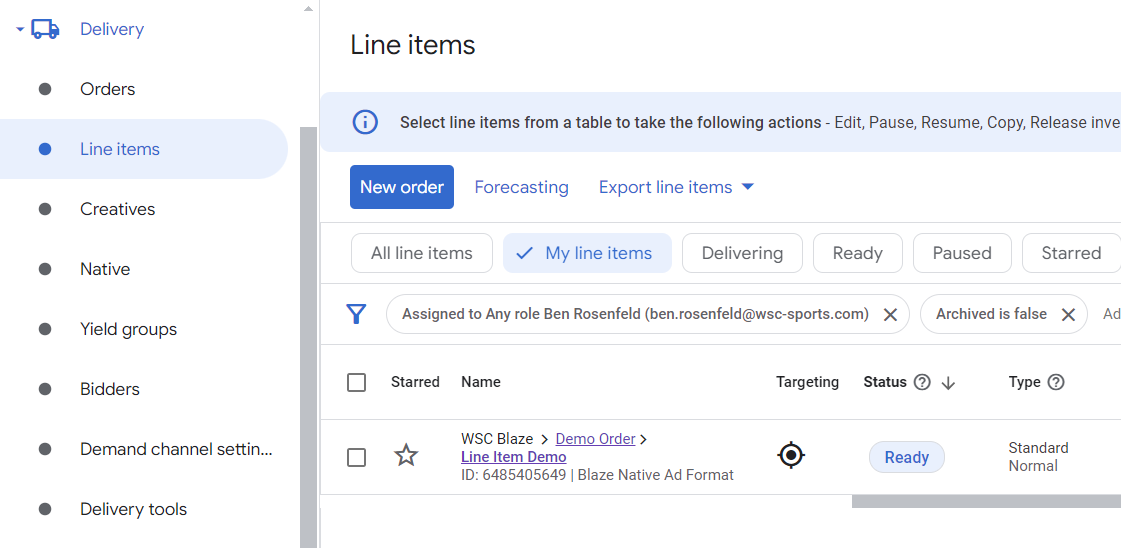
-
For the new line item, choose the display type.
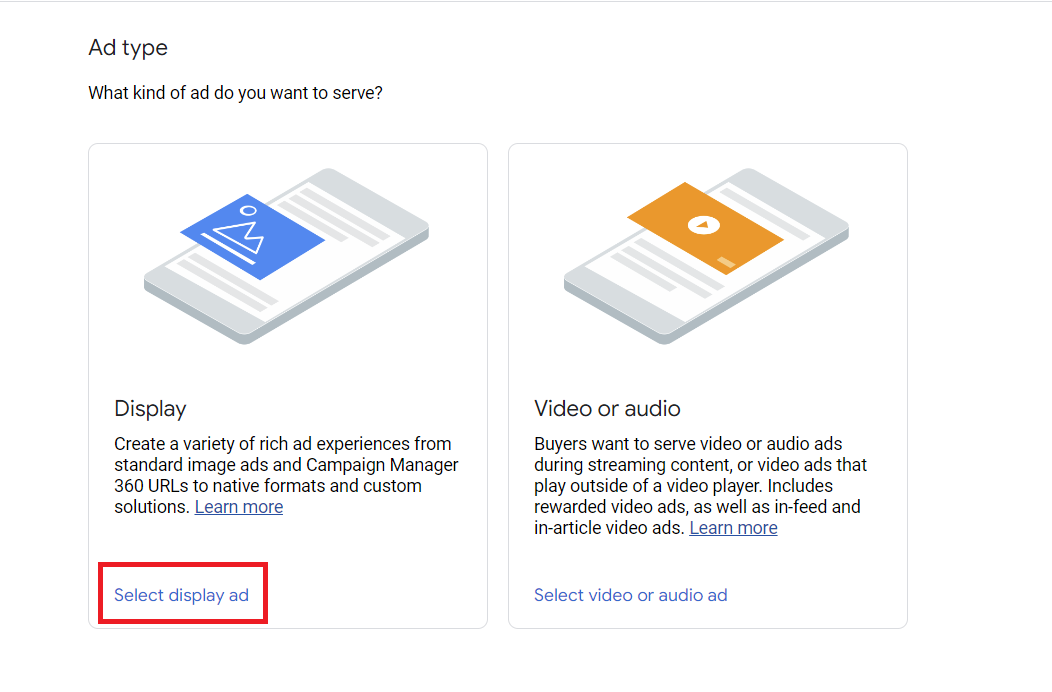
-
Complete the required line item fields. Use size 320X50.

-
Open the line item and attach the creative from the earlier steps.
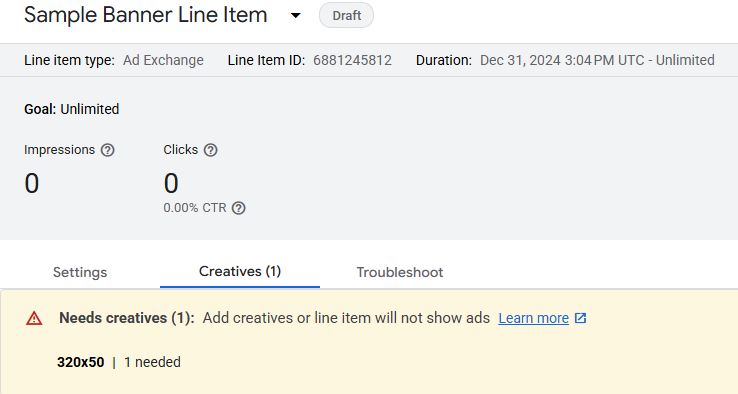
-
Create an ad unit: under Inventory, open the ad units page and select New ad unit.
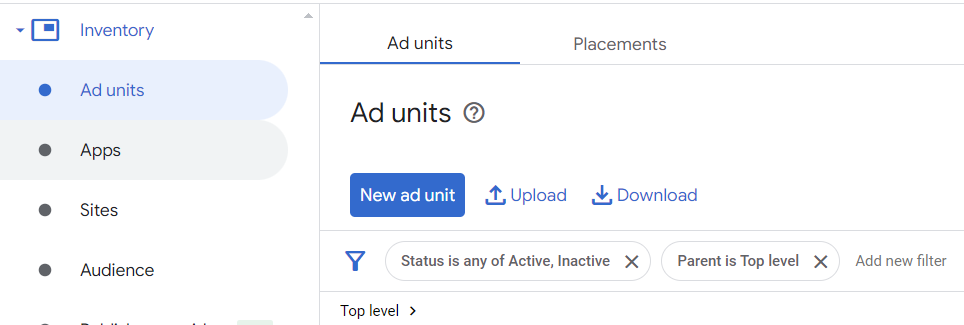
-
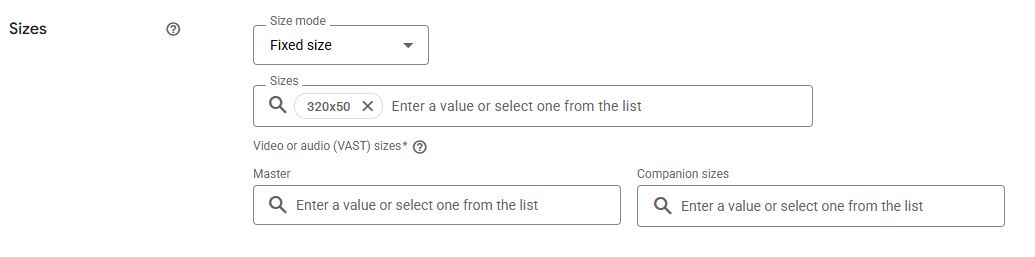
Complete the required ad unit fields. Use size 320X50.
-
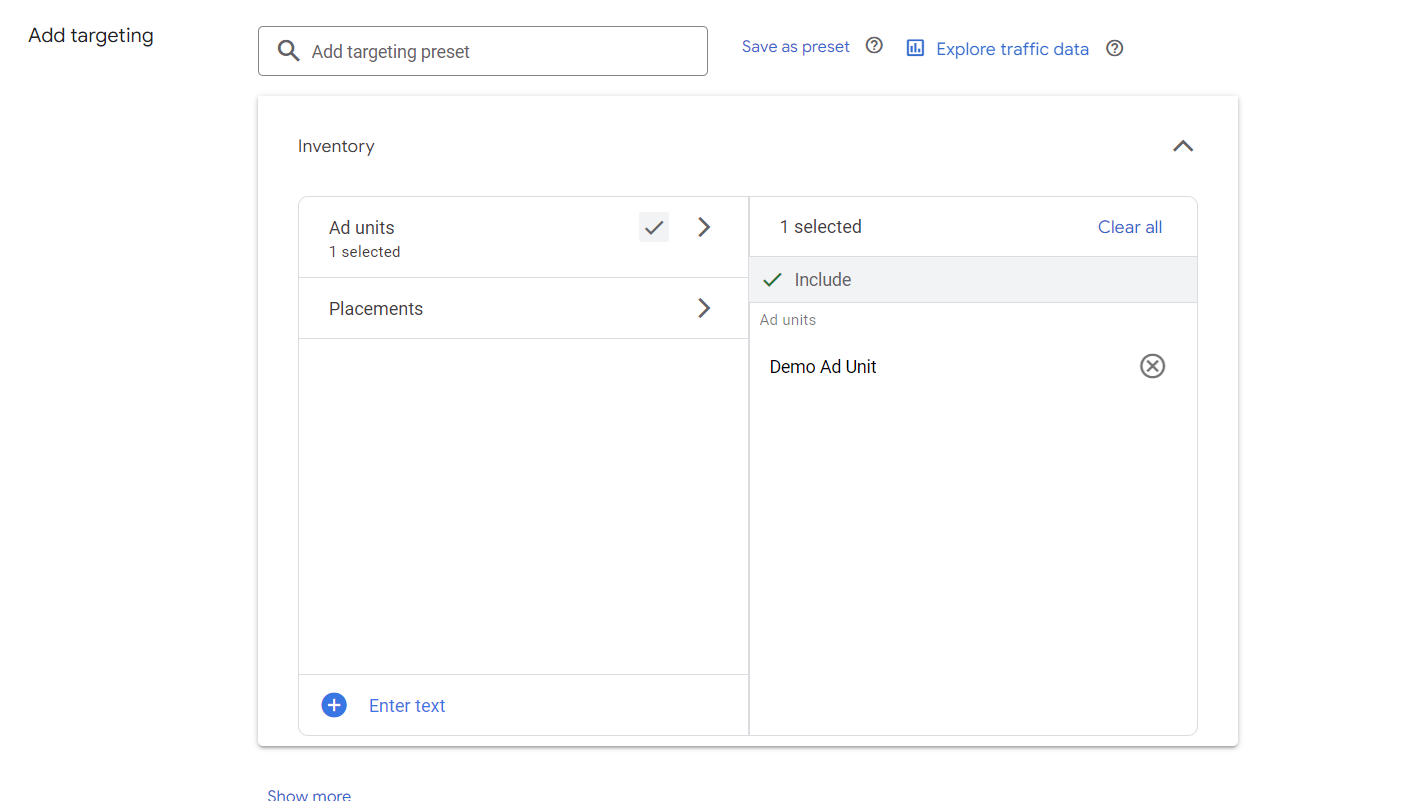
Link the line item to the ad unit: open the line item, and under Targeting, select Inventory and choose the ad unit.
-
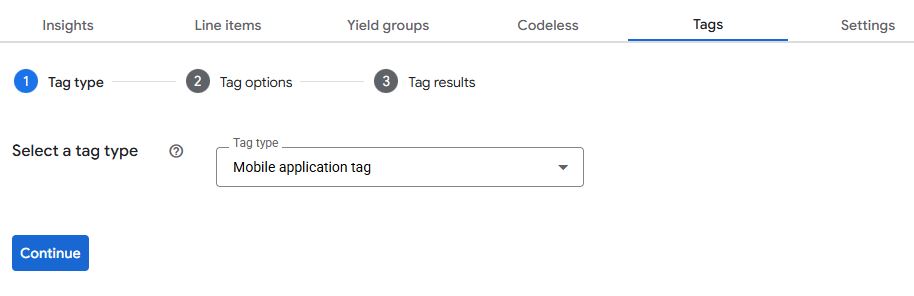
Create a mobile application tag for the ad unit you use with the Experiences SDK. Open the ad unit, select the Tags tab, create a Google publisher tag for video and audio, and choose Google IMA SDK.
-
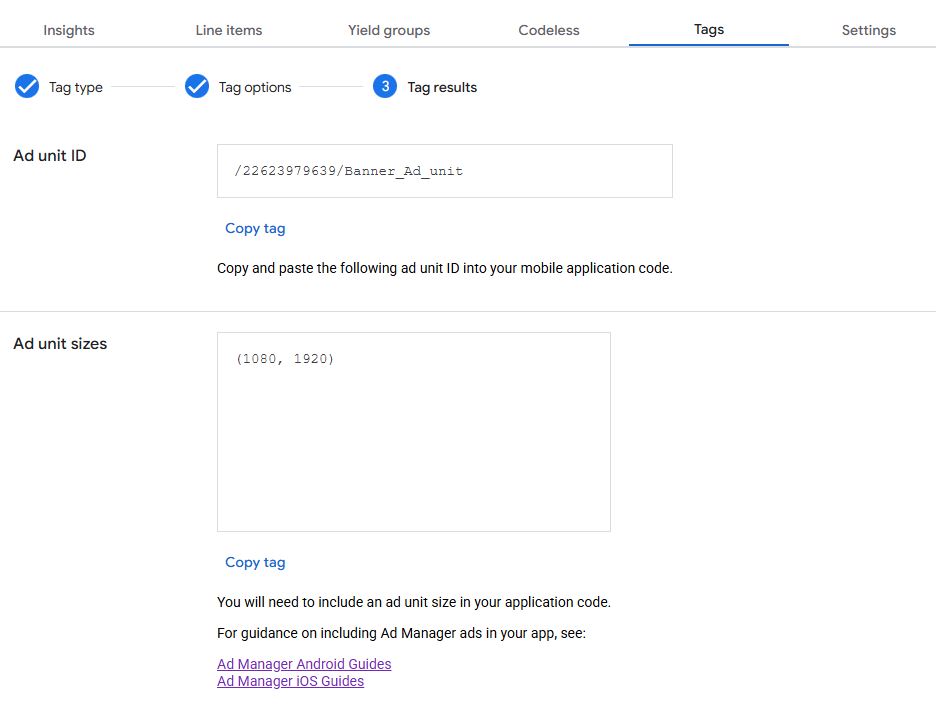
When the tag is ready, it should look like the example below. Share the tag with WSC Sports when you configure the campaign.
Updated 3 days ago