
GAM web custom format
Set up Google Ad Manager (GAM) so the Experiences SDK can serve GAM custom display ads built from the WSC Sports web template.
To set up web custom format ads:
-
Download the template files for your placement type:
- Moments: Web ad template (2025-03-24)
- Stories: download both files:
-
Sign in to Google Ad Manager.
-
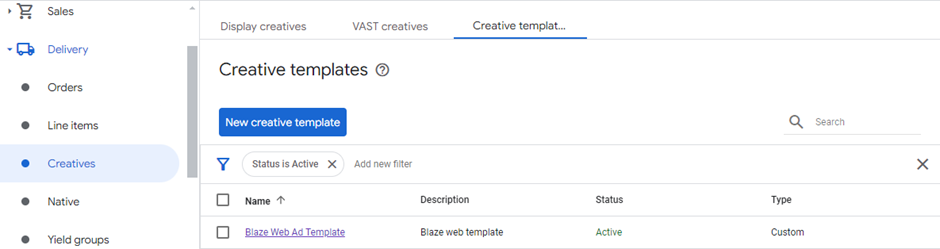
Go to Delivery > Creatives.
-
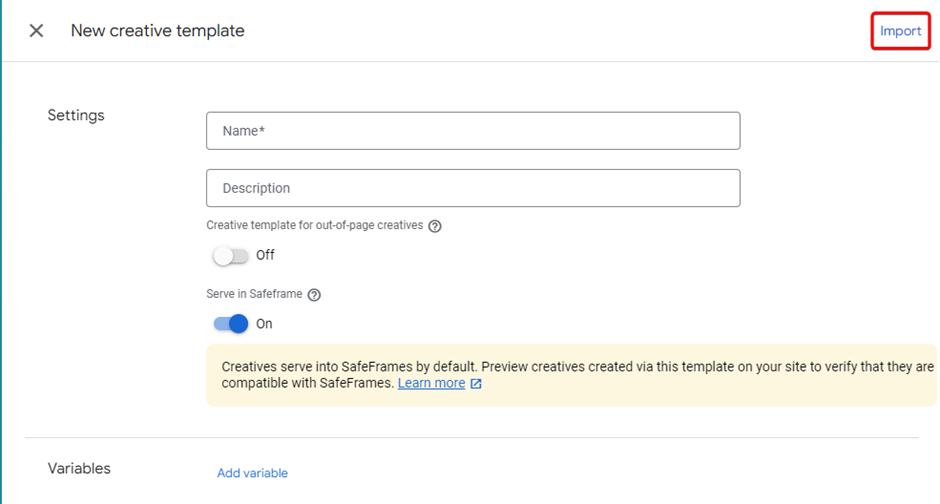
On the Creative templates tab, select New creative template.
-
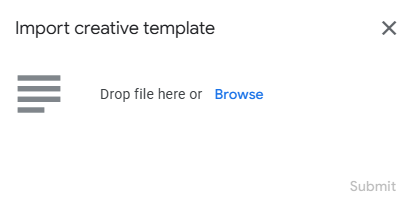
Select Import. The import dialog opens.
-
Select Browse and choose the template file you downloaded.
-
For Stories, import the second template file: select Import again and choose the other Stories file.
-
Select Submit.
-
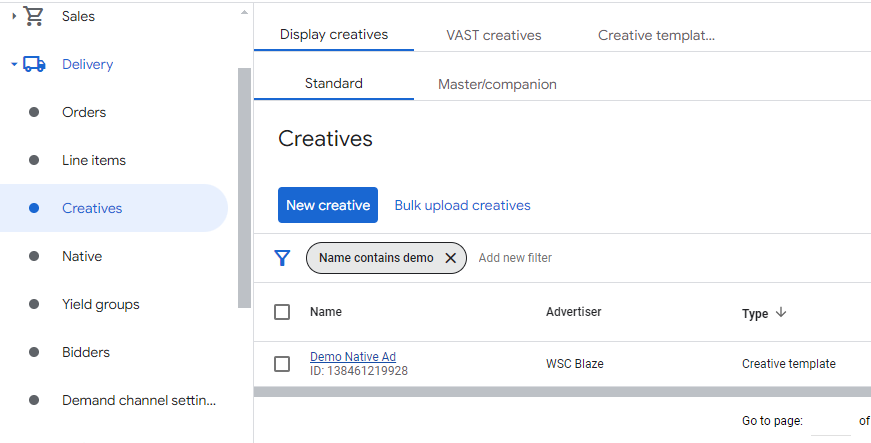
Go to Creative
-
On the Display creatives tab, select New creative.
-
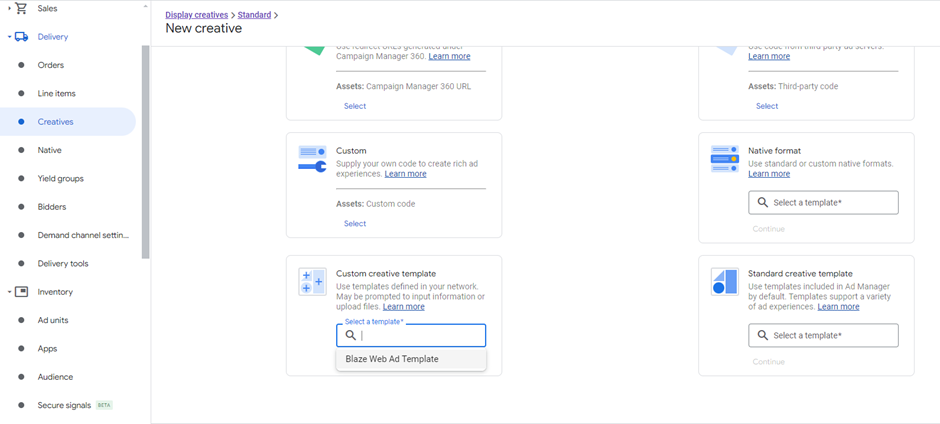
Choose the creative template you imported earlier.
-
Complete the New creative form. Use this table as a field reference:
Name Description Type Required CTA_TITLE Call to action title Text Yes CTA_URL Call to action landing page URL URL/Text Yes CTA_BACKGROUND_COLOR Call to action button background color Text No CTA_TEXT_COLOR Call to action text color Text No AD_VIDEO URL or file for the video URL/Text Yes AD_IMAGE URL or file for the image URL/Text Yes AD_TITLE Ad title Text No AD_TITLE_COLOR Ad title color Text No CLICK_TRACKING_URLS Third-party click tracking URLs URL/Text No IMPRESSION_TRACKING_URLS Third-party impression tracking URLs URL/Text No -
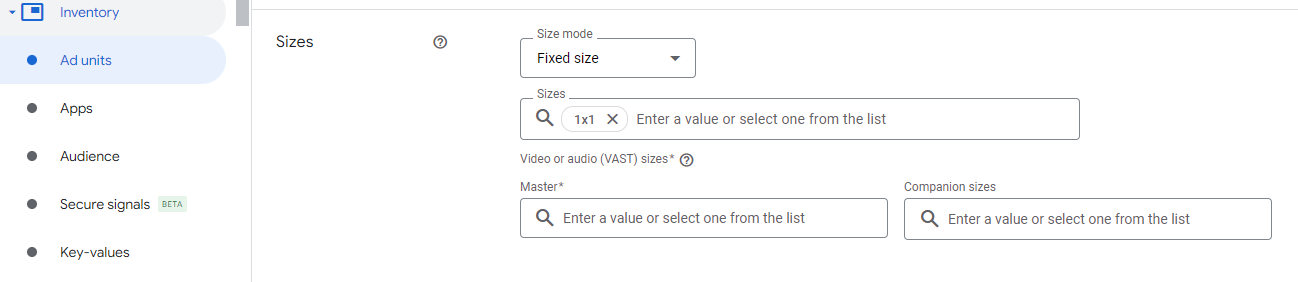
Create an ad unit for the ads. Set the size to 1x1.
-
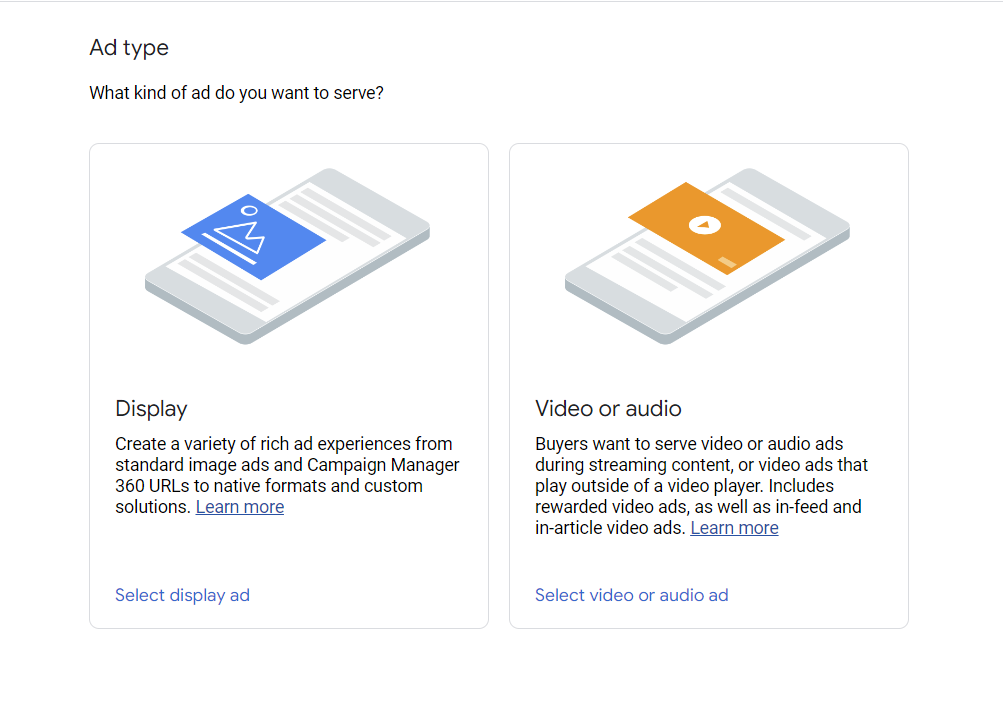
Open Line items and create a line item. Choose a display line item type.
-
Set Expected creatives for the line item to 1x1.

-
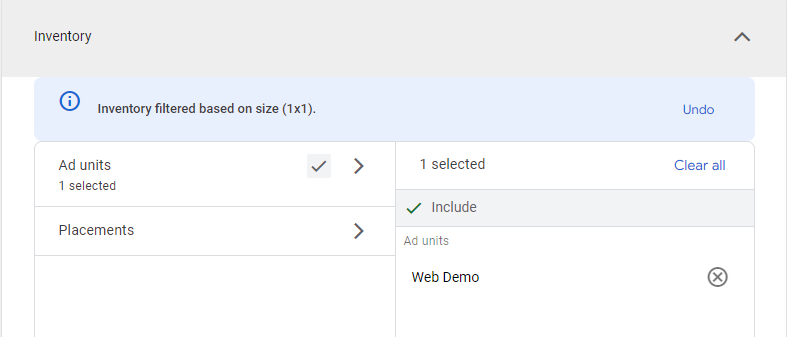
Under line item Inventory, add the ad unit from the previous step.
-
Attach the creative you created earlier to the line item.
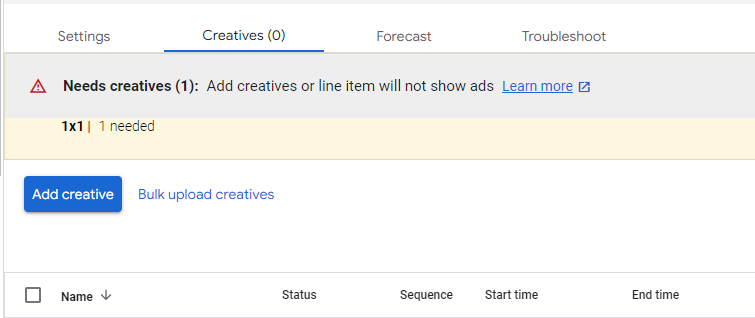
-
Create a mobile application tag for the ad unit you use with the Experiences SDK.
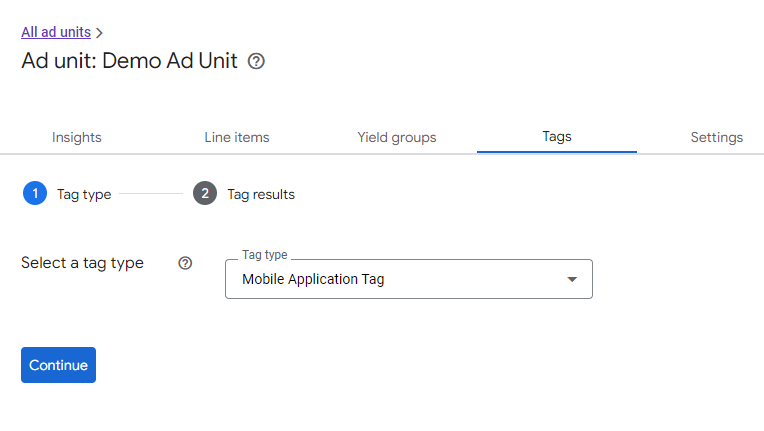
Collect values for the Experiences SDK
After you create the GAM objects, copy the ad unit path for SDK configuration:
- In GAM, go to Inventory > Ad units.
- Open the Stories or Moments ad unit you created.
- Select Tags, then Mobile application tag.
The path looks like /33813572/web-ad-unit. Share it with WSC Sports when you configure the campaign.
Updated 2 months ago