
GAM MCM connection
Connect your Google Ad Manager (GAM) inventory to WSC Sports through Multi-Customer Management (MCM) so WSC Sports can help manage ad delivery for your Experiences integration.
Step 1: Provide account information
- Provide the email of a GAM admin who can approve the request.
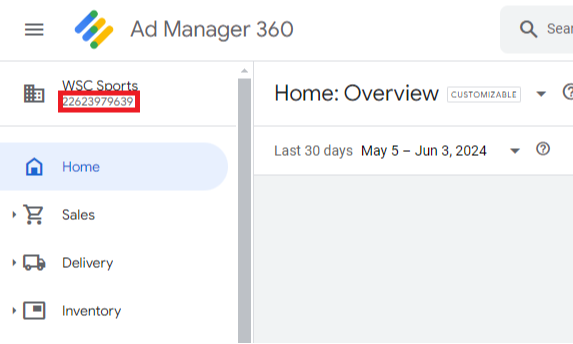
- Provide your GAM network code:
-
Find it in the top-left corner of your account, below the account name.
-
Or go to Admin > Global settings > Network settings and copy the network code.
-
Step 2: Accept the MCM invitation
- WSC Sports sends you an MCM invitation to link your account.
- In GAM:
- Log in to Google Ad Manager.
- Open Admin.
- Select Multi-Customer Management.
- Find the invitation from WSC Sports and click Accept.
Step 3: Update ads.txt or app-ads.txt
After you approve the connection, WSC Sports sends GAM account details to add to your ads.txt or app-ads.txt file.
- Add the entry to the root folder of your website or app ads file.
- Example format:
google.com, pub-0000000000000000, RESELLER, f08c47fec0942fa0
Updated 4 months ago
Did this page help you?