
GAM VAST format
Set up Google Ad Manager (GAM) so the Experiences SDK can serve VAST video ads from GAM, without a WSC Sports creative template.
- The SDK supports a single VAST wrapper per ad request.
- Playlist and VMAP wrappers aren't supported.
- Don't set up ad VMAP on your GAM inventory.
To set up VAST video ads in GAM:
-
Go to https://admanager.google.com, log in.
-
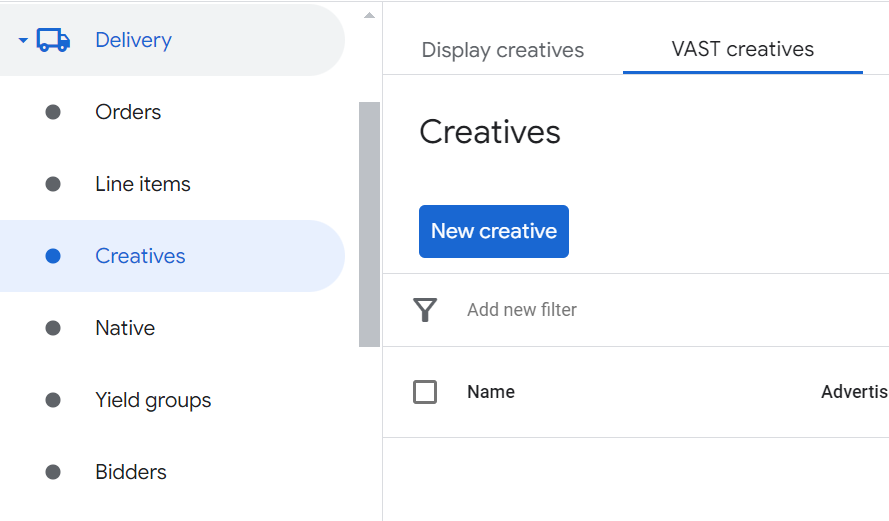
Select Delivery > Creatives > VAST creatives.
-
Click New creative.
-
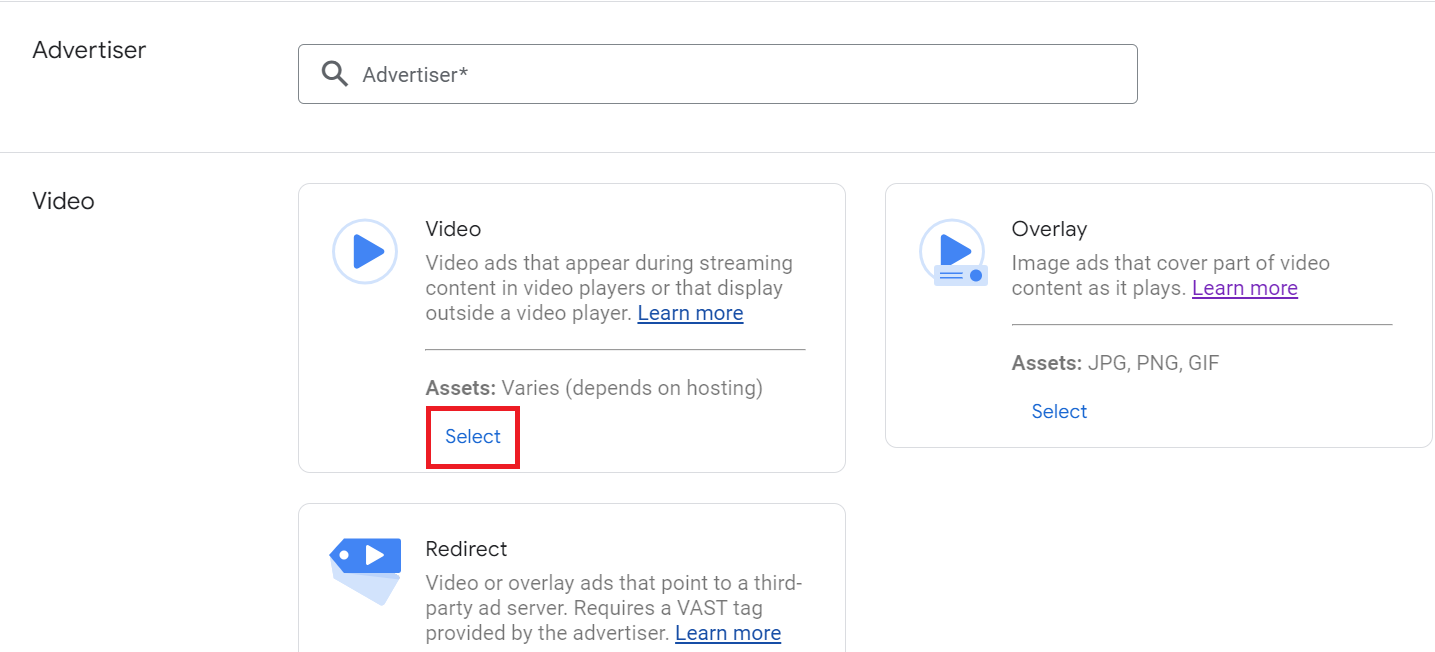
Select Video type.
-
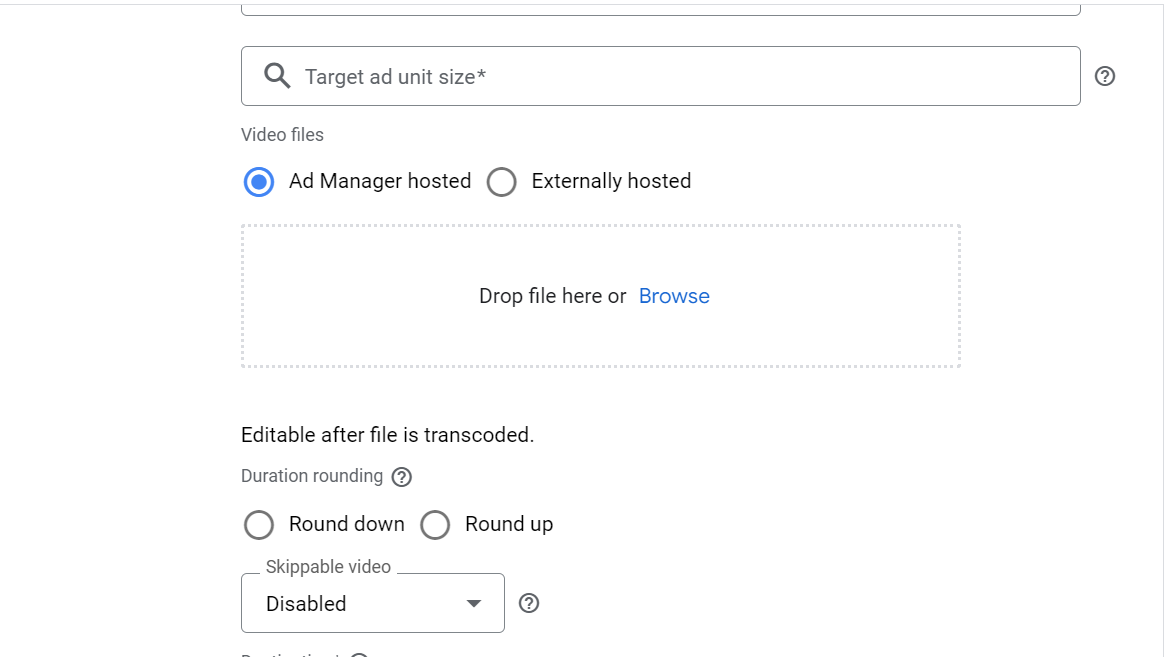
Create the VAST ad. Set the target unit size to 1X1V.
-
Upload the creative asset, and define skippability and the call to action (CTA).
-
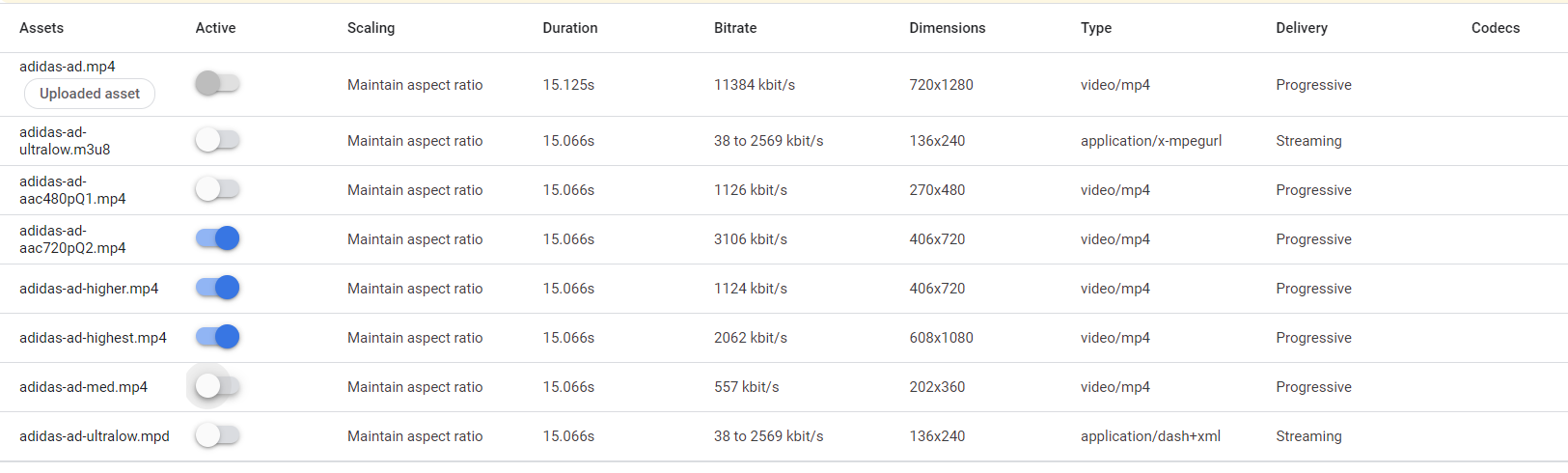
After you create the creative, keep only the video renditions you need. Uncheck lower-resolution versions you don't want served.
-
Create a line item: open Delivery, go to the line item page, create a new order, and add a line item.
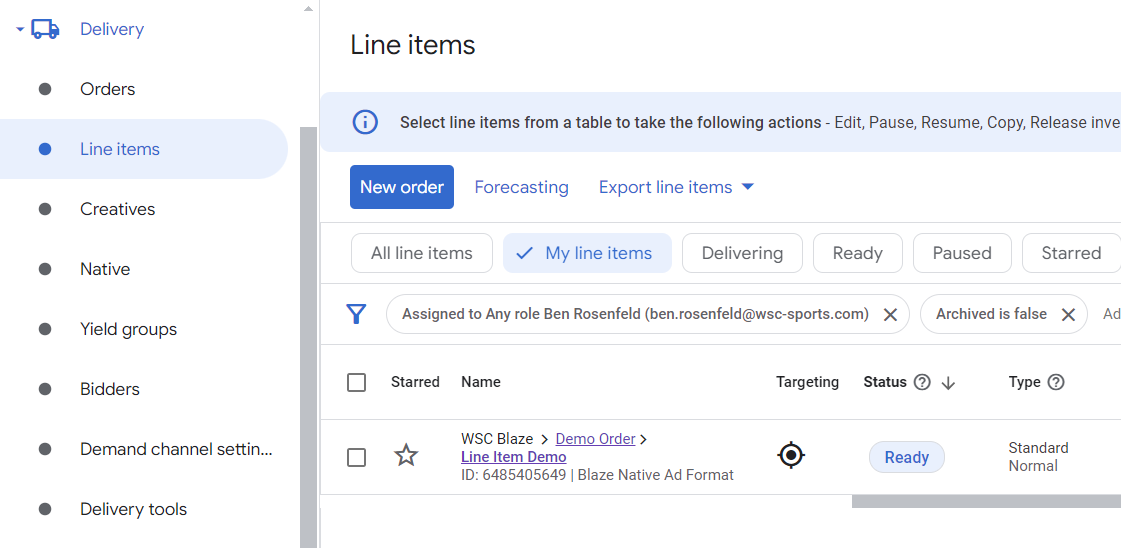
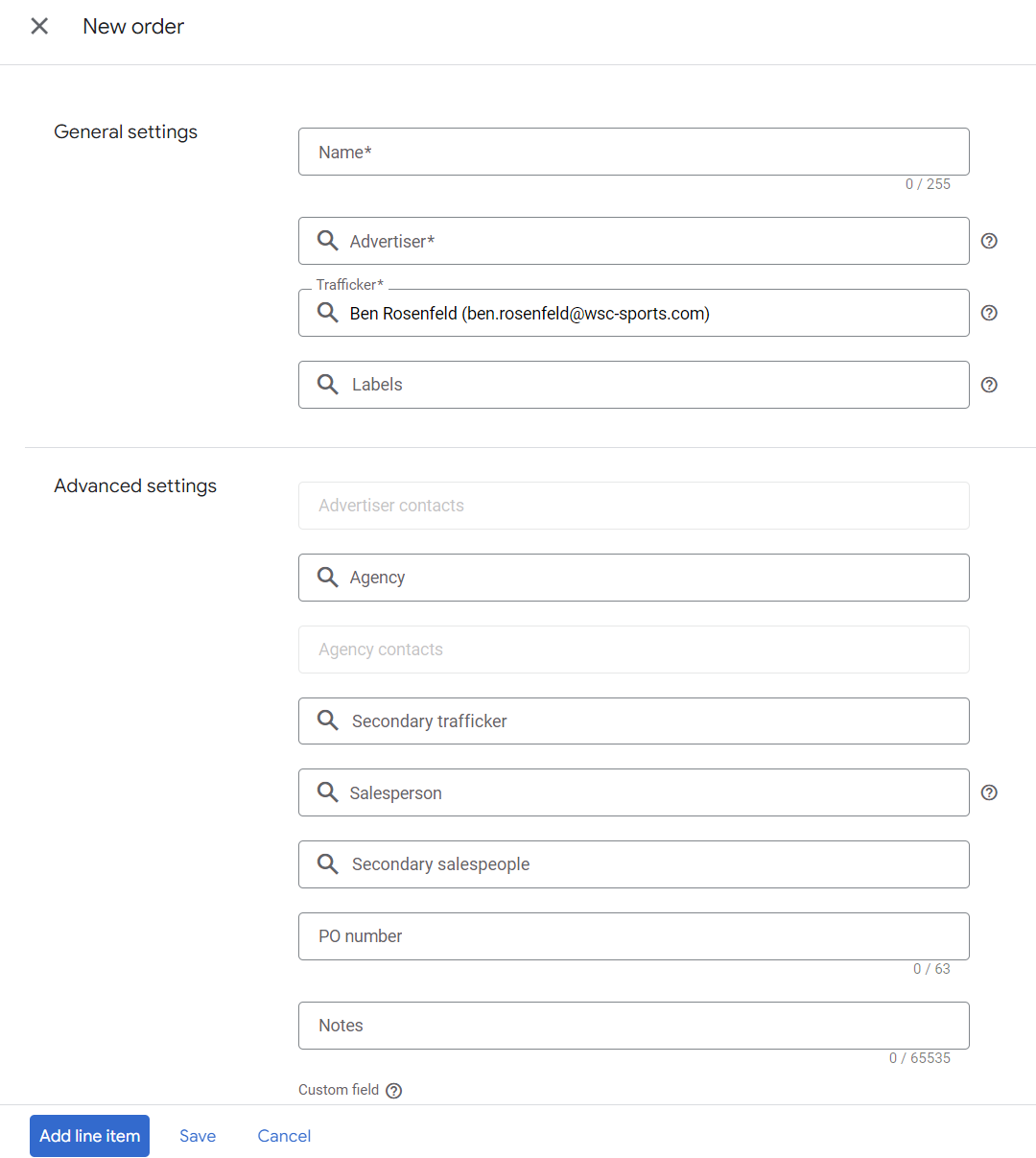
-
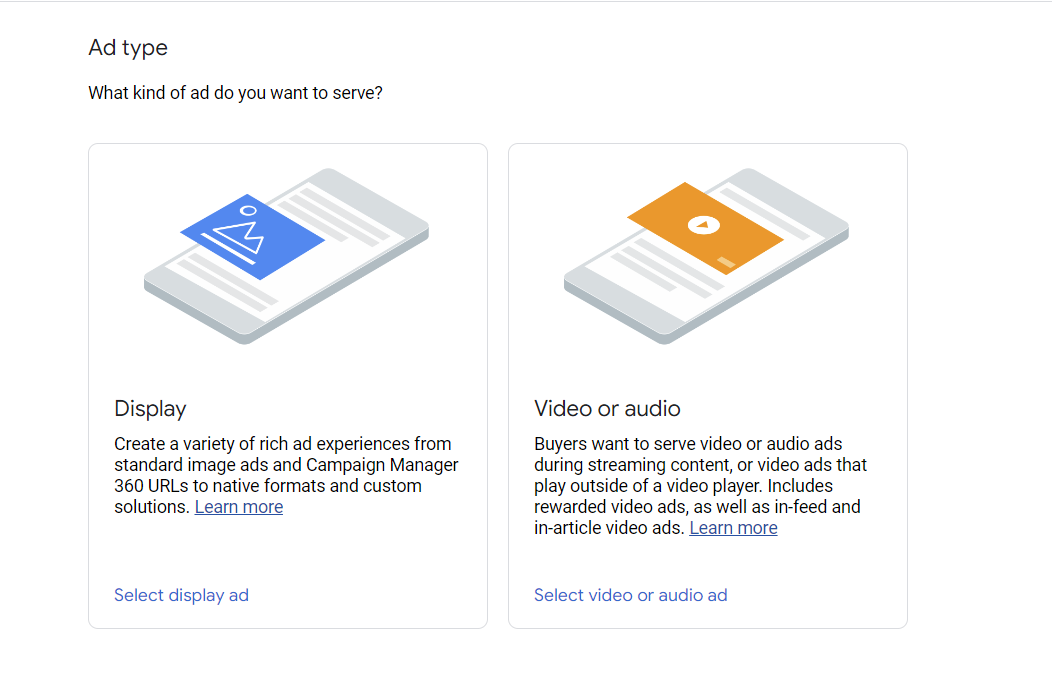
For the new line item, choose the Video or audio type.
-
Complete the required line item fields. Use size 1X1.

-
To add the 16:9 desktop setup, click Add size in the Expected creatives section.

-
In the same Expected Creative row, click the Creative targeting dropdown.
-
Click Add new.

-
Name the creative targeting preset Web.
-
In the creative targeting window, click Device category.
-
Select Desktop.
-
Save the creative targeting preset.
-
Confirm the Expected Creative row includes the 16:9 creative size and the Web creative targeting preset.
-
Go to the line item you just created and add the creative you made in the previous steps.
-
Create an ad unit for the ad:
- Go to the Ad Units page under Inventory, and create a new ad unit.
- Fill in all required fields for the ad unit and use 1x1 size.
- Connect the line item you created to the new ad unit. Go to the relevant line item, and under the targeting section, select the inventory and choose the ad unit you want to use.
- In the line item inventory, add the ad unit you created in the previous step.
-
Create a VAST tag that you will share with WSC Sports to present the ad:
- Go to the ad unit and select the Tags tab.
- Create a new Google publisher tag for video and audio, and choose the Google IMA SDK option.
-
After creating the tag, it should look like this.
Updated 3 months ago