
Manage viewer engagement (buttons and interactions)
Viewer engagement helps drive action and participation within your content. It includes CTA buttons and interactions, which can be added to Stories and Moments depending on the use case.
See Viewer engagement (buttons and interactions) concept.
Create and manage poll and quiz interactions
Interactions are created and managed in the Interactions tab. After creation, they are deployed in a Story via the Story asset card.
Create or modify a poll or quiz interaction
- In CMS, go to Interactions > Create New Interaction or select an existing interaction.
- Select Poll or Quiz.
- Complete the form with the question and answers.
- For quizzes, select the correct answer.
- Click Create.
The interaction is now ready and can be added to Stories.
Deploy engagements
Prerequisite: To deploy an engagement (poll or quiz), you must first create the engagement in the Interactions tab.
To deploy an engagement on a Story:
-
In CMS, select a Story > ... More > Go to story page.
-
Select a page.
-
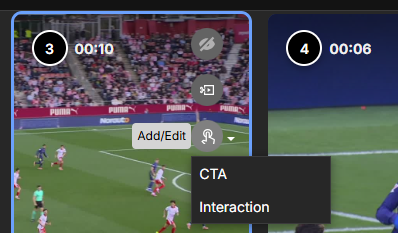
Click Add/Edit, then choose CTA button or Interaction.
-
Select CTA or Interaction, then follow the relevant procedure in the sections that follow.
Add or edit a CTA button on a Story page
To add a CTA to a page:
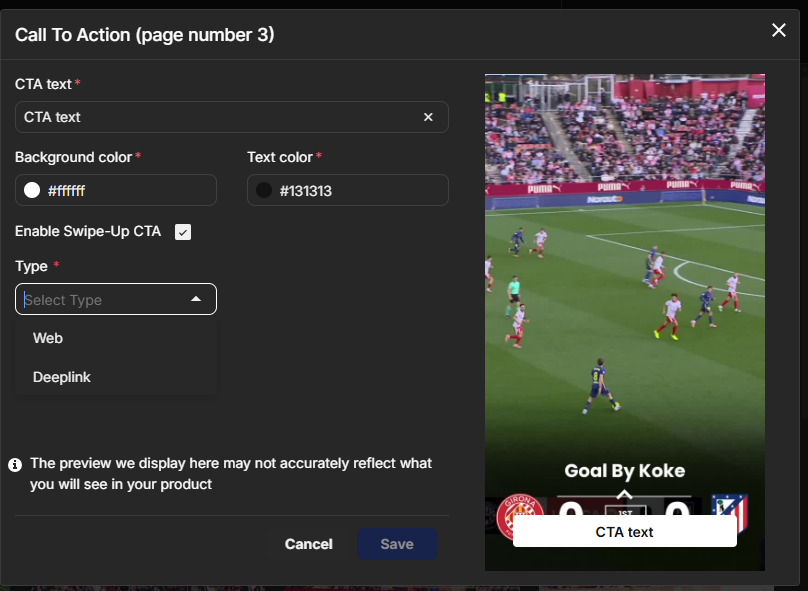
- Enter the CTA text. This is the label shown on the button.
- Set the styling options, including Background color and Text color.
- Optionally, enable Swipe-Up CTA.
- In Type, choose:
- Web link: Opens a URL in a browser or web view
- Deeplink: Opens a specific location within an app
- Set the redirect URL as needed.
- Click Save.
The CTA badge appears on the page, and the CTA button is displayed when viewers see the content.
Deploy an interaction
To add an interaction to a page:
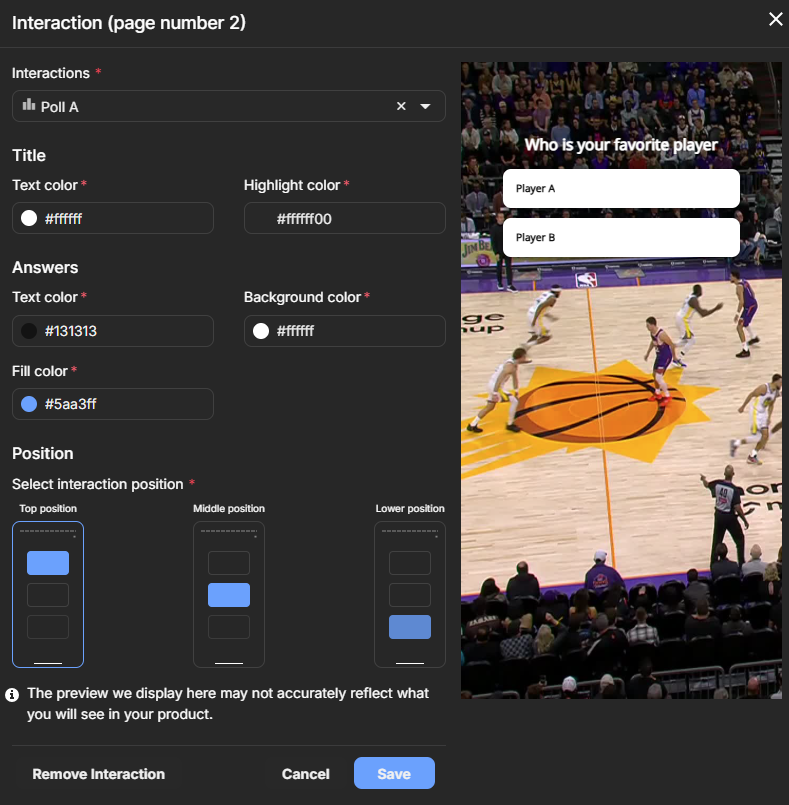
- Select an existing interaction or click Create New Interaction.
- Configure the interaction styling, including text and answer colors.
- Choose the interaction placement: top, middle, or lower.
- Click Save.
Add or edit a CTA button on a Moment
Moments support CTA buttons only. The CTA button applies to the entire Moment.
-
In CMS, select a Moment > ... More > Add call to action.
-
Complete the CTA setup:
- Enter the CTA text.
- Set the styling options, including Background color and Text color.
- Optionally, enable Swipe-Up CTA.
- In Type, choose:
- Web link: Opens a URL in a browser or web view
- Deeplink: Opens a specific location within an app
- Set the redirect URL as needed.
- Click Save.
The CTA badge appears on the Moment.
Updated 2 months ago