
Labels mechanism
Labels are category tags on content. They're the main way the app controls which content the Experiences SDK retrieves and in what order it's displayed. Labels also connect explicit viewer interests, such as follows and favorites, to content: your app (app backend) maps those interests to labels and passes them to the SDK so widgets and entry points can show prioritized content tailored to the viewer.
This article describes what labels are, where they come from, how they're used (including follow-based explicit personalization under Content recommendations), and where to find the implementation details.
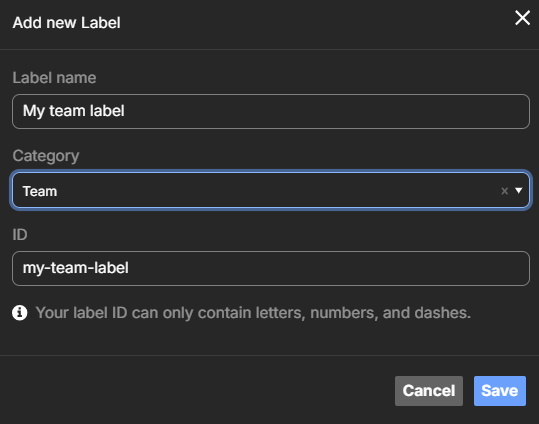
What are labels
- Labels are alphanumeric strings used to categorize and tag content. There are no restrictions on how you structure your labels.
- Content items can have zero to many labels.
- Labels typically map to content metadata, such as teams, leagues, tournaments, and players. They can also represent other elements such as actions, scores, and sponsors.
- They form the foundation for filtering, prioritizing, and tailoring content in the app, including explicit personalization as one branch under Content recommendations.
- Ask your WSC Sports engineer to help you set up your label-naming methodology.
Where labels come from
Labels are applied to content in two ways:
- During content creation:
- Automatically by rules: Rules can apply static labels or generate labels dynamically from game and play metadata.
- Manually: You can apply labels as part of the Create or Clipro publication process.
- After content creation: Labels can be added or removed manually in the CMS. See Labels and scheduling.
How labels are used: filter and priority
The SDK doesn't decide what to show on its own. Your app tells it what to fetch and how to order it by using the Labels data source type and, when relevant, the viewer's explicit interests.
Two roles for labels:
- Filter: A label expression (like
ANDorOR) defines which content is in the set. Only content that matches the expression is fetched and shown. - Priority: An optional priority list of labels defines the order of that set. Content matching the first labels in the list appears first; within each priority level, ordering can be controlled with an order type (like recently updated first).
So labels answer: "What content is eligible?" (filter) and "In what order should it appear?" (priority). For the exact parameters and types, see Labels data source.
Explicit viewer interests and labels
Viewers express what they care about in several ways: the Follow button (players, teams, competitions), favorite teams or leagues in app settings, onboarding choices, or region. Your app stores these as explicit interests (such as followed entity IDs). The SDK doesn't store that data; your app does.
To turn those interests into viewer-specific ordering (explicit personalization under recommendations) in widgets and entry points, you use labels (and sometimes content IDs):
- Your app loads the viewer's interests from your backend (like followed entities from the follow mechanism).
- Your app maps those interests to labels (like followed team IDs → team labels that exist on content).
- Your app configures the Labels data source for a widget or entry point: use a label expression to define the content set and, for "favorites first" or multi-tier ordering, pass the mapped labels as labels priority.
- The SDK fetches and orders content accordingly. Content that matches the viewer's labels can be shown first or exclusively, depending on how you set the filter and priority.
So the follow mechanism (and other explicit choices) doesn't replace labels. It feeds into them. Follow gives you the list of entities the viewer cares about; you translate that into labels and pass them to the SDK so content from those entities is filtered or prioritized. For explicit personalization patterns (like pure filter, prioritized display, multi-tier) and step-by-step examples under the recommendations umbrella, see Recommendations and personalization.
When content is available
Content is available only when there is a schedule associated with the label. The schedule defines when the content is available. Schedules are configured in the CMS; see Labels and scheduling.
Related documentation
| Topic | Description |
|---|---|
| Labels data source | Labels data source type: labelExpression, labelsPriority, orderType, and other parameters. |
| Data sources | Overview of all data source types and when to use each. |
| Recommendations and personalization | Trending, Personalization (explicit and implicit), patterns, and use cases. |
| Follow button | How viewers follow entities in the player and how your app persists and syncs follow lists. |
| Labels and scheduling | How to apply and manage labels and schedules in the CMS. |
Updated 5 months ago