
Thumbnail edit
Thumbnail Edit allows you to customize the appearance of content in your digital property by cropping static thumbnails or adding animated GIF thumbnails directly within the CMS.
Thumbnail editing principles
- Manual cropping is available across all supported ratios.
- Thumbnails can be edited using uploaded images or system-generated video frames.
- Thumbnails cannot be imported directly from the library. You must download the thumbnail and then upload it to the CMS.
Thumbnail specifications
| Specification | Details |
|---|---|
| Supported thumbnail types | Static images, animated GIFs |
| Static ratios | 1:1, 2:3, 9:16, 16:9 |
| Animated GIF support | Portrait (9:16) and Landscape (16:9) |
| Supported file formats | JPG, PNG, GIF |
| Maximum file size | 20MB |
| Editing controls | Position, scale, rotation |
Thumbnail management workflow
To edit or upload a thumbnail
-
In the Content tab, select a content item.
-
Click ... (options) and select Edit Thumbnail.
The currently available thumbnails are displayed.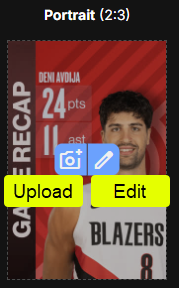
-
Click Upload or Edit as needed. The available editing options are:
- Position (move image)
- Scale (resize)
- Rotation
-
Click Save.
Updated 7 months ago
Did this page help you?