
Story Manager
Story Manager is a CMS view used to review and configure existing Stories. It lets you control page visibility and viewer engagements without editing Story content or structure. Story Manager is used after a Story has already been created.
What are Stories
Stories are collections of pages presented as a single, continuous experience within your digital property. Viewers swipe through pages in sequence, with each page representing a distinct moment in the flow.
Pages can include viewer engagements, such as CTAs and interactions, to encourage action and increase engagement.
Stories can be created using Create, Rules, or directly in Clipro.
Story Manager page overview
The Story Manager page lets you review Story details, preview pages, control visibility, and configure viewer engagements. It doesn’t change Story structure, media assets, or editorial content.
From this page, you can:
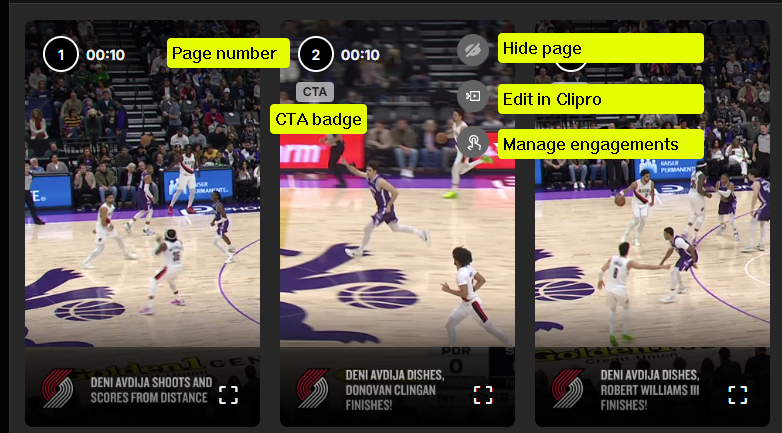
- View all pages in a Story
- Preview the selected page
- Hide or unhide individual pages
- Set or edit CTAs and interactions
Opening Story Manager
To open Story Manager:
- Select a Story in CMS.
- Click More > Go to Story page.
The Story pages list appears alongside the Overview panel, with the selected page shown in the preview.
Using Story Manager
When you open a Story, all its pages are shown in order. Selecting a page updates the Overview panel so you can review how it appears to viewers.
For more on the panel and its controls, see Overview panel.
Page configuration options
Story Manager provides page-level options focused on visibility and engagement.
| Option | Description |
|---|---|
| Hide / Unhide page | Toggle whether a page is visible to viewers. Hidden pages aren’t shown in the live experience but remain part of the Story. |
| Set / Edit view engagements | Configure engagement elements on the page, including:
|
Updated 25 days ago