
Automatic event-based activation
Automatically turn the Active setting on or off for Experiences content based on triggers you set, without manually switching each item in the CMS. When Active is on, the content is available to viewers. When it's off, the content isn't available to viewers, and its availability status shows as Draft.
Publishing into CMS is separate. Create, Rules, and Clipro deliver content to CMS on publish. Active turns on later, when your trigger fires.
Only content with Active on can reach Viewers. Labels and the availability schedule still apply.
Examples of activation triggers:
- A game event, for example, 30 minutes after the game ends. The system is official schedule-aware, so the trigger adjusts if the game schedule changes.
- A fixed date and time.
- A delay after the item is delivered to CMS.
- A time relative to when the item was delivered to CMS.
How this differs from scheduled publish and labels
Three separate controls decide when and how content reaches Viewers. Each acts at a different stage, so it helps to keep them apart.
| Control | What it decides | Stage |
|---|---|---|
| Scheduled publish job | When the item is delivered to CMS. This is part of the content generation process in Arena. | Before the item exists in CMS |
| Automatic event-based activation | When Active turns on in CMS, so the item is available to viewers. | After the item is in CMS |
| Labels and availability schedule | When an item with Active on is served to a Viewer | At the SDK request, after activation |
An item passes through all three in sequence: a scheduled or unscheduled publish job delivers it into CMS, activation turns Active on, and then labels and the availability schedule gate whether the SDK serves it. This article covers only the middle step, activation. Scheduled publish jobs are managed in the Arena Publish Hub. For the delivery window, see Labels and scheduling.
Where you set it
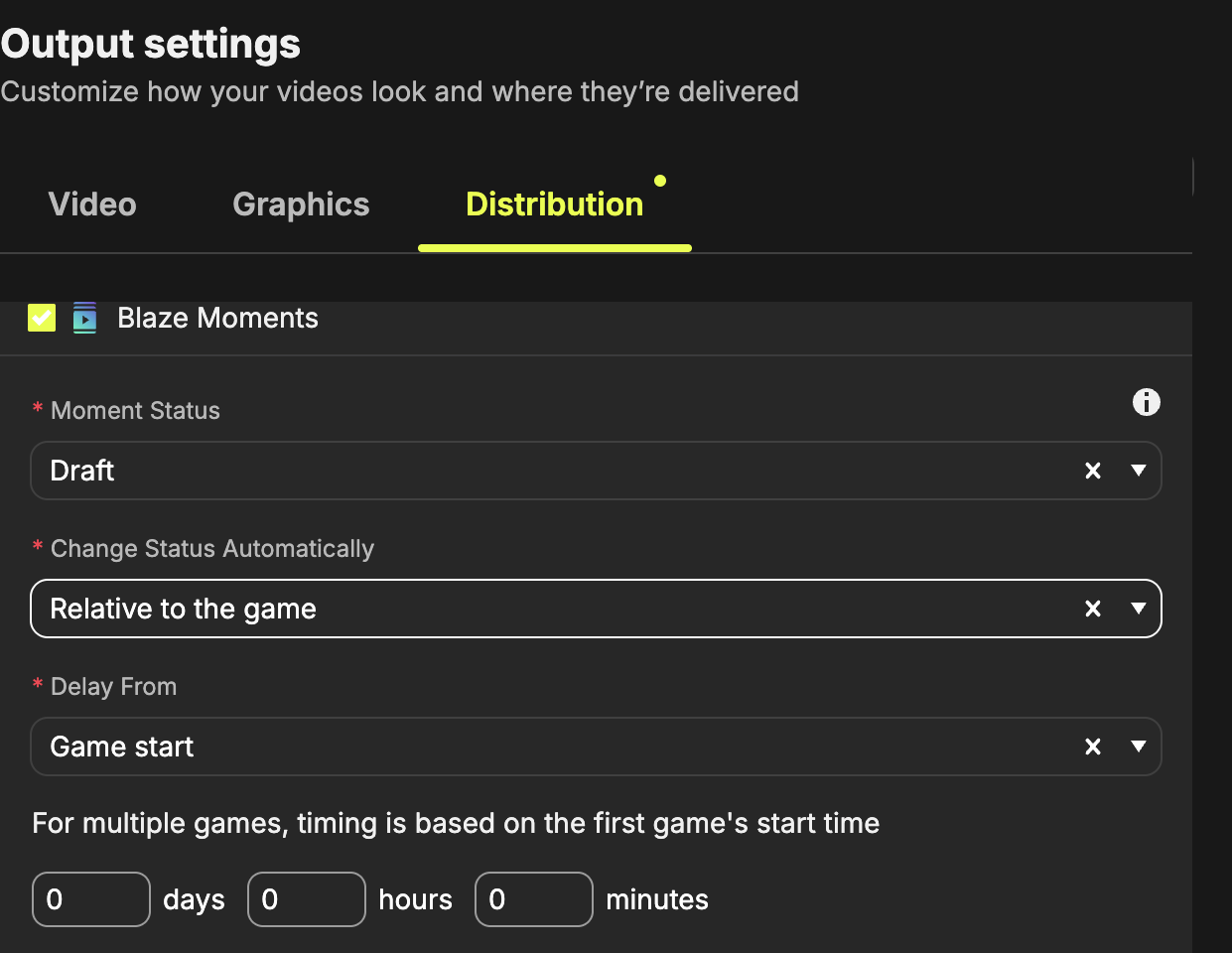
Create, Rules, and Clipro (Publish panel)
When the destination is the Experiences CMS publish point, you can set the following:
- Activation Status (in the Clipro publish panel for Moments and Videos, the Active toggle under Visibility): starting status when the item is delivered into CMS (Draft by default, or as configured for the publish point). You can choose Active.
- Change Status Automatically: the trigger that changes status after the item is in CMS, for example, game end, a fixed time, or a delay. Create, Rules, and Clipro expose the full set of triggers, described in Triggers.
- Labels and other Experiences publish-point fields: same labels and scheduling behavior as elsewhere in CMS. See Labels and scheduling.
Set these in the content generation flows (Rules, Create, Clipro) so the activation triggers apply whether content is auto-created or published to CMS manually.
Experiences CMS (Overview panel)
After the item already exists in CMS, open the asset Overview panel to:
- Manually turn Active on or off.
- Set a simpler automatic trigger for activation or deactivation: typically Never or At a specific time, with a time zone.
Manual changes clear a pending trigger
Turning Active on or off by hand cancels any trigger that has not fired yet. If an item is scheduled to turn Active on in 24 hours and someone turns it on and then off again before then, the item stays a draft. The original trigger does not fire.
To restore the behavior, set the trigger again on that item in the CMS Overview panel.
Triggers (Create, Rules, Clipro)
| Trigger | What you set | When status changes |
|---|---|---|
| Never | Nothing else | Only when someone changes status manually |
| At a specific time | Date, time, and time zone | At that date and time |
| Relative to the game | Delay From (Game start or Game end), plus a day, hour, or minute offset | At the resolved game time plus offset |
| Relative to publish time | Same day, next day, or the next weekday, plus a clock time | Relative to when the item was delivered to CMS |
| After a delay | Days, hours, or minutes | After that delay from delivery to CMS. Processing can add a few minutes |
The same triggers apply to activation (Active turns on) and deactivation (Active turns off). Only the direction of the change differs.
Triggers are based on time and on game events. They do not test the result of a game, so you cannot activate an item only when a particular team wins. To make content depend on an outcome, control whether the item is created at all in the Rules trigger conditions, upstream of activation.
When you use a relative trigger, the panel shows the resolved date and time so you can confirm it. The time zone defaults to your local browser time zone, but you can override it, and the platform stores UTC plus a time zone ID.
Game event timing
- Game start and end use the scheduled times in the database, not the live tip-off clock.
- Official delay updates to the game schedule are reflected automatically.
- For content tied to more than one game, with Delay From set to:
- Game start: uses the first game start plus offset.
- Game end: uses the last game end plus offset.
- If a trigger is relative to game end and the game has not ended yet, the UI can show an estimated time, then replace it with the actual end time plus offset once the game ends. If that estimated time passes while the game is still in progress, the content stays a draft (Active off) until the actual end plus offset.
- If the system cannot resolve a trigger, for example, when a game time is missing, CMS shows an error on the item.
Updated 24 days ago